Scene modifiers control how the product is visualized, including cameras, lighting, materials, environments, and rendering settings. They define the visual context in which geometry is displayed.
These modifiers affect visualization and presentation, but do not alter the underlying geometry or exported files unless explicitly configured.
Modifier
Explanation
Input
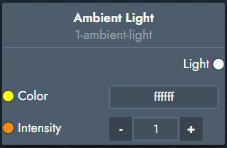
Ambient Light
A light that simulates ambient lighting present in natural or environment lighting.
Inputs
Color: Color in RGB hexcode applied to the light.
Intensity: Strength of the light.
Outputs
Light: The ambient light.
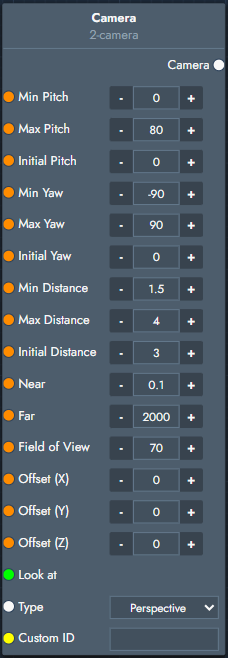
Camera
Defines the camera used to view and render the scene.
Inputs
Min Pitch / Max Pitch / Initial Pitch: Vertical camera angle limits and starting angle.
Min Yaw / Max Yaw / Initial Yaw: Horizontal camera angle limits and starting angle.
Min Distance / Max Distance / Initial Distance: Distance limits and starting distance from the target.
Near: Near clipping plance distance.
Far: Far clipping plane distance.
Field of View: Camera field of view angle.
Offset (X/Y/Z): Camera positional offset.
Look At: Target position for the camera.
Type: Camera projection type (e.g. Perspective).
Custom ID: Optional identifier.
Outputs
Camera: The camera definition.
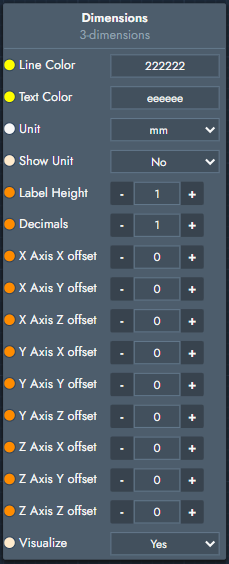
Dimensions
Displays dimension annotations in the scene.
Inputs
Line Color: Color of dimension lines.
Text Color: Color of dimension text.
Unit: Measurement unit (e.g. mm).
Show Unit: Toggles unit display.
Label Height: Size of the dimension labels.
Decimals: Number of decimal places.
Axis X/Y/Z Offset: Positional offsets for dimension axes.
Visualize: Toggles visibility.
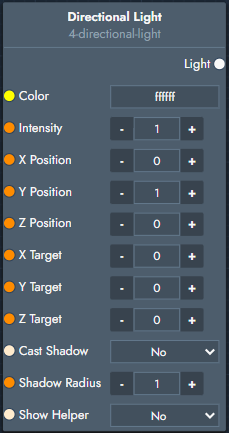
Directional Light
A light type that emits light in a single direction, similar to sunlight.
Inputs
Color: Color in RGB hexcode applied to the light.
Intensity: Strength of the light.
X / Y / Z Position: Position of the light source.
X / Y / Z Target: Target point the light is aimed at.
Cast Shadow: Enables or disables shadow casting.
Shadow Radius: Softness of shadows.
Show Helper: Toggles the visual helper.
Outputs
Light: The directional light.
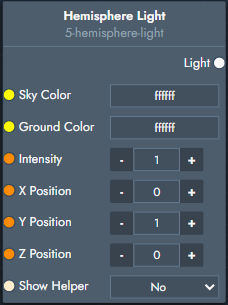
Hemisphere Light
A light that simulates indirect lighting from sky and ground.
Inputs
Sky Color: Color applied to upward-facing geometry.
Ground Color: Color applied to downward-facing geometry.
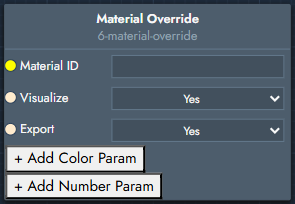
Material ID: Identifier of the Unreal Engine material to override. Supports the * wildcard.
Visualize: Enables the override during visualization.
Export: Enables the override during export.
Add Color Param: Adds a color parameter override.
Param ID: Name of the material parameter in Unreal Engine.
Color: Color value applied to the parameter.
Add Number Param: Adds a numeric parameter override.
Param ID: Name of the material parameter in Unreal Engine.
Value: Numeric value applied to the parameter.
Physical Material
A fully customizable physical (PBR-based) material. This node exposes advanced material properties and should be used when realistic light interaction, transmission, or layered materials are required.
Inputs
Material: Template material input that acts as the base material.
Color RGB / Color CMYK: Base (albedo) color of the material, expected as a hexadecimal color value.
Roughness / Roughness Map: Controls surface smoothness; low values produce sharp reflections, high values produce diffuse reflections, with optional texture-based variation.
Metal / Metalness Map: Defines whether the surface behaves as metallic (1) or non-metallic (0), with optional spatial variation via a texture.
Normal Map / Bump Map / Bump Scale: Adds surface detail without increasing geometry; bump scale controls the intensity.
Transmission: Controls how much light passes through the material, used for glass or translucent materials.
Thickness: Defines the physical thickness of the material, influencing how transmitted light diffuses and attenuates.
Clearcoat: Adds a secondary transparent coating layer on top of the base material.
Clearcoat Roughness / Maps / Normal Map: Controls the smoothness and surface detail of the clearcoat layer independently.
Reflectivity: Adjusts the overall strength of reflections beyond roughness and metalness.
IOR: Index of refraction controlling how strongly light bends when entering the material.
Sheen / Sheen Color RGB / Sheen Roughness: Adds a soft, fabric-like reflection at grazing angles; sheen color is expected as a hexadecimal value.
Specular Intensity / Specular Color RGB: Controls the strength and color of specular highlights for non-metallic materials; color is expected as a hexadecimal value.
Iridescence / Iridescence IOR: Simulates thin-film interference effects causing color shifts depending on viewing angle.
Emissive Color RGB / Emissive Map / Emissive Intensity: Makes the material emit light; emissive color is expected as a hexadecimal value.
Attenuation Distance / Attenuation Color: Controls how light is absorbed as it travels through the material; attenuation color is expected as a hexadecimal value.
Opacity / Alpha Map: Controls transparency, where 1 is fully opaque and 0 is fully transparent, with optional texture-based variation.
Environment Map Intensity: Controls how strongly environment lighting affects reflections and shading.
Side: Determines which faces are rendered (Default, Front, Back, or Double).
Anisotropic Filtering: Controls texture filtering quality at grazing (narrow) viewing angles; higher values result in sharper textures when viewed at shallow angles.
Outputs
Material: The resulting physical material.
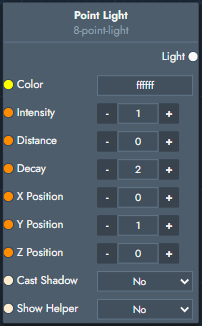
Point Light
A light that emits light equally in all directions from a single point.
Inputs
Color: Color in RGB hexcode.
Intensity: Strength of the light.
Distance: Maximum light reach.
Decay: Light decay over distance.
X / Y / Z Position: Light position.
Cast Shadow: Enables shadow casting.
Show Helper: Toggles the visual helper.
Outputs
Light: The point light.
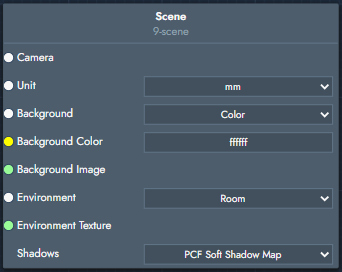
Scene
Defines global scene settings such as camera selection, background, environment lighting, and shadow behavior.
Inputs
Camera: Camera used to view and render the scene, defining viewpoint, projection, and framing.
Unit: Scene unit for measurements and scale (e.g. mm). Affects world-unit–based features such as Dimensions and AR.
Background: Defines the scene background type:
Color: Solid background color.
Texture: Background image.
Equirect: Equirectangular environment texture.
Background Color: Background color when the background type is set to Color.
Background Image: Image used when the background type is set to Texture.
Environment: Controls environment lighting:
None: No environment lighting.
Room Preset: Predefined studio lighting.
Background: Uses the background as the light source.
Equirect: Uses an HDR or equirectangular texture.
Environment Texture: HDR or environment texture used when the environment mode is Equirect.
Shadows: Defines how shadows are rendered in the scene.
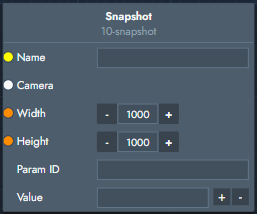
Snapshot
Defines the camera and image settings used to generate the preview image that is saved when a configuration is stored.
Inputs
Name: Identifier of the snapshot.
Camera: Camera used to render the preview image.
Width / Height: Output resolution of the preview image.
Param ID: ID of the parameter to override before the snapshot is taken. Multiple parameter overrides can be added using the + button and removed using the – button.
Value: Parameter value that is temporarily applied when generating the snapshot.
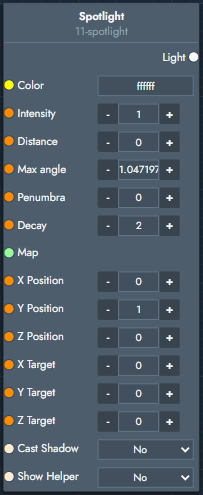
Spotlight
A light that emits light in a cone shape.
Inputs
Color: Light color, expected as an RGB hexadecimal value.
Intensity: Strength of the light.
Distance: Maximum distance the light reaches.
Max Angle: Maximum angle of the light cone.
Penumbra: Controls the softness of the edge of the light cone.
Decay: Controls how light intensity decreases over distance.
Map: Texture map applied to the light.
X / Y / Z Position: Position of the light source.
X / Y / Z Target: Target position the light is pointing at.
Cast Shadow: Enables or disables shadow casting.
Show Helper: Toggles the visual helper that shows the light’s position and direction.
Outputs
Light: The spotlight.
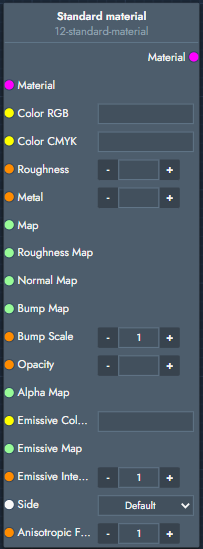
Standard material
A fully customizable standard (PBR-based) material where every input can be dynamically changed. Use this node for most materials. If you require advanced effects such as transmission, clearcoat, sheen, iridescence, or attenuation, use Physical Material instead.
Inputs
Material: Template material input that acts as the base material.
Color RGB / Color CMYK: Base (albedo) color of the material, expected as a hexadecimal color value.
Roughness / Roughness Map: Controls surface smoothness; low values give sharp reflections, high values give matte reflections, with optional texture-based variation.
Metal: Controls how metallic the material behaves, where 0 is non-metallic and 1 is fully metallic.
Map: Base color texture applied to the material.
Normal Map / Bump Map / Bump Scale: Adds surface detail without increasing geometry; bump scale controls intensity.
Opacity: Controls transparency, where 1 is fully opaque and 0 is fully transparent.
Alpha Map: Texture used to vary transparency across the surface.
Emissive Color RGB / Emissive Map / Emissive Intensity: Makes the material appear self-illuminated; color is expected as a hexadecimal value.
Side: Determines which faces are rendered (Default, Front, Back, or Double).
Anisotropic Filtering: Controls texture filtering quality at grazing (narrow) viewing angles; higher values result in sharper textures when viewed at shallow angles.
Outputs
Material: The resulting standard material.
JavaScript errors detected
Please note, these errors can depend on your browser setup.
If this problem persists, please contact our support.
.svg)